Store
With this functionality, you can add items to your website that visitors can order in an easy and intuitive way. For every order, you will receive a notification and will be able to process it directly through the website.
Store Settings
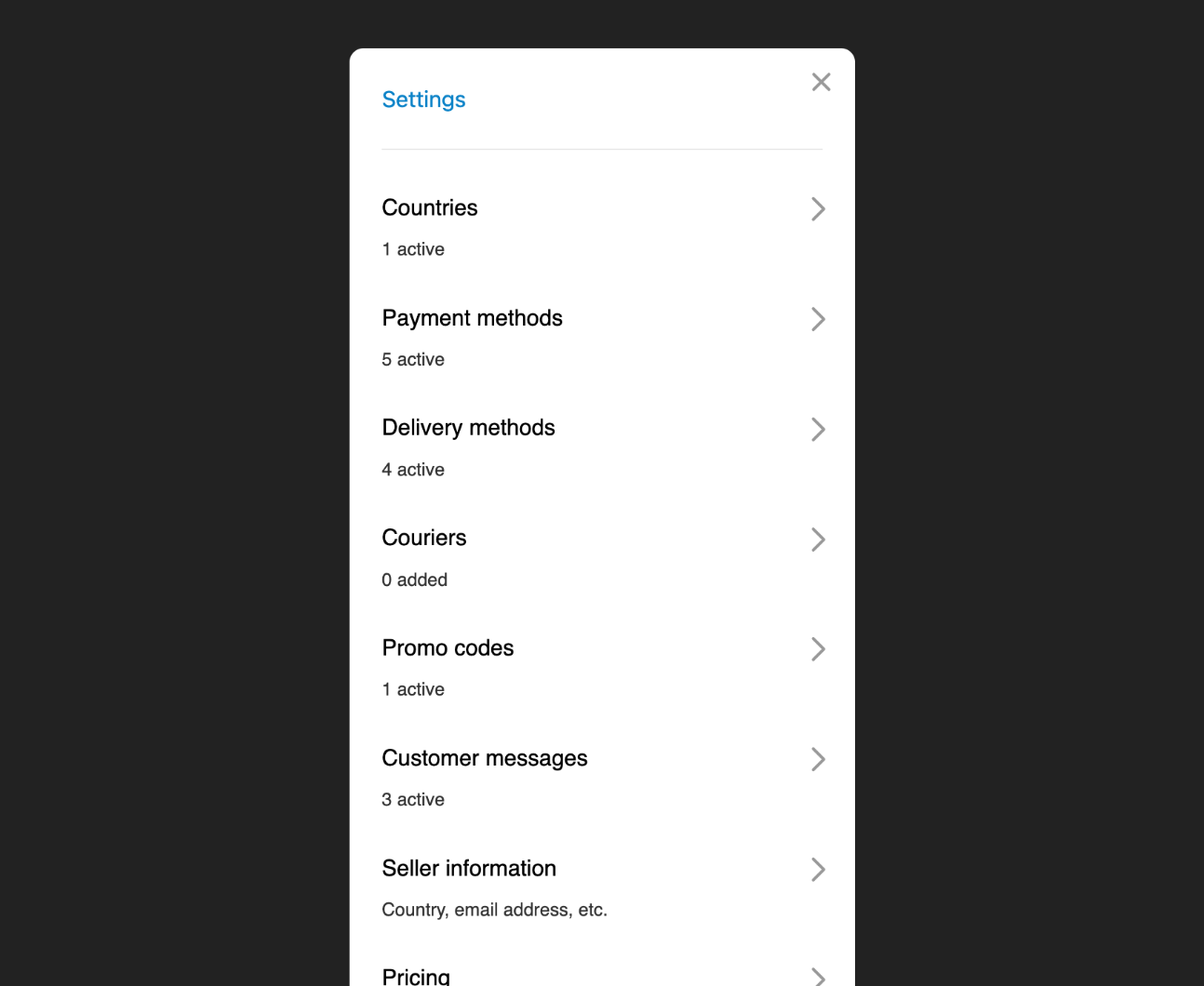
The most important step for launching your store is to go through the settings list to specify the countries you will sell in, payment and delivery methods, invoice requests, and more.
Adding Items
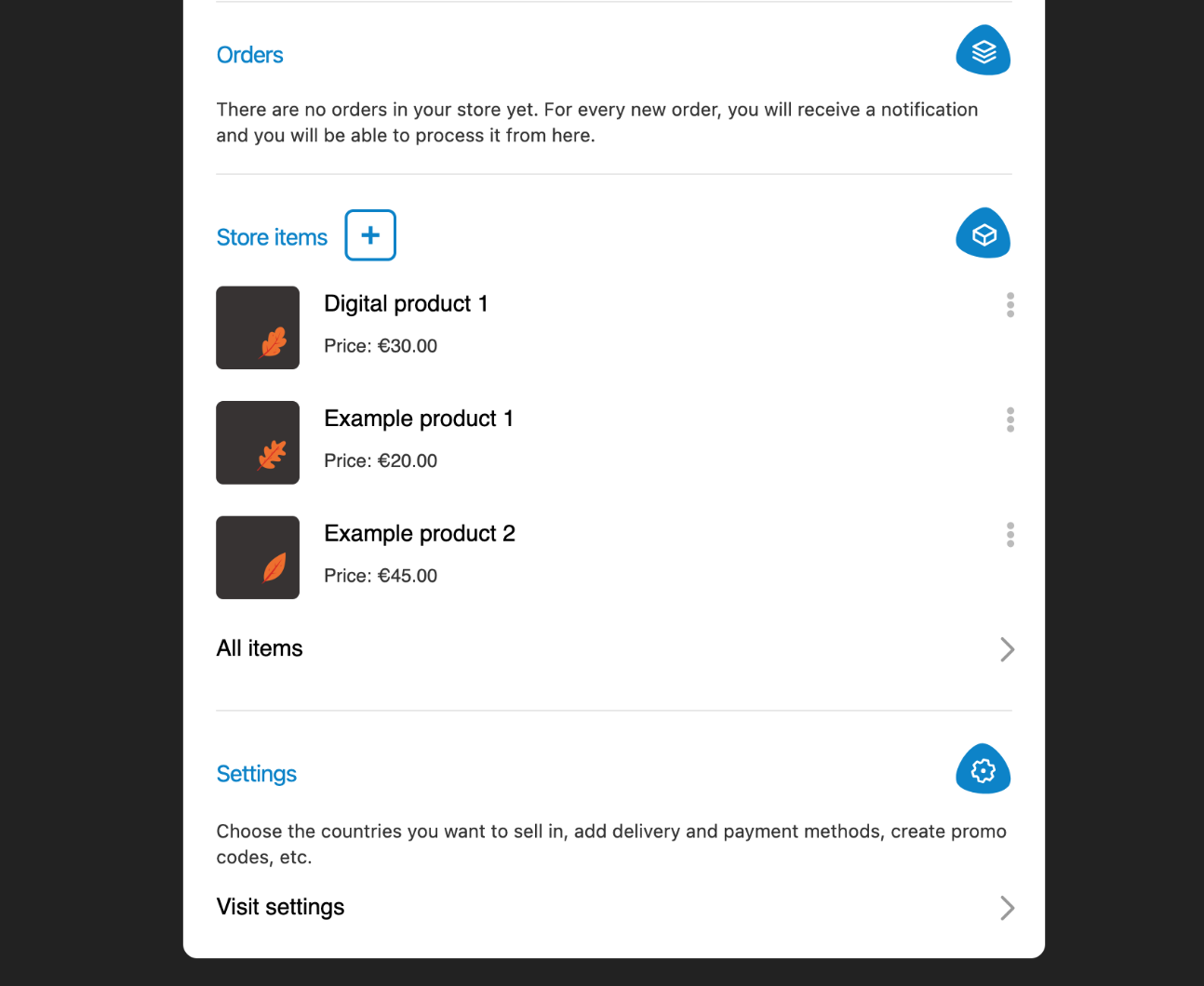
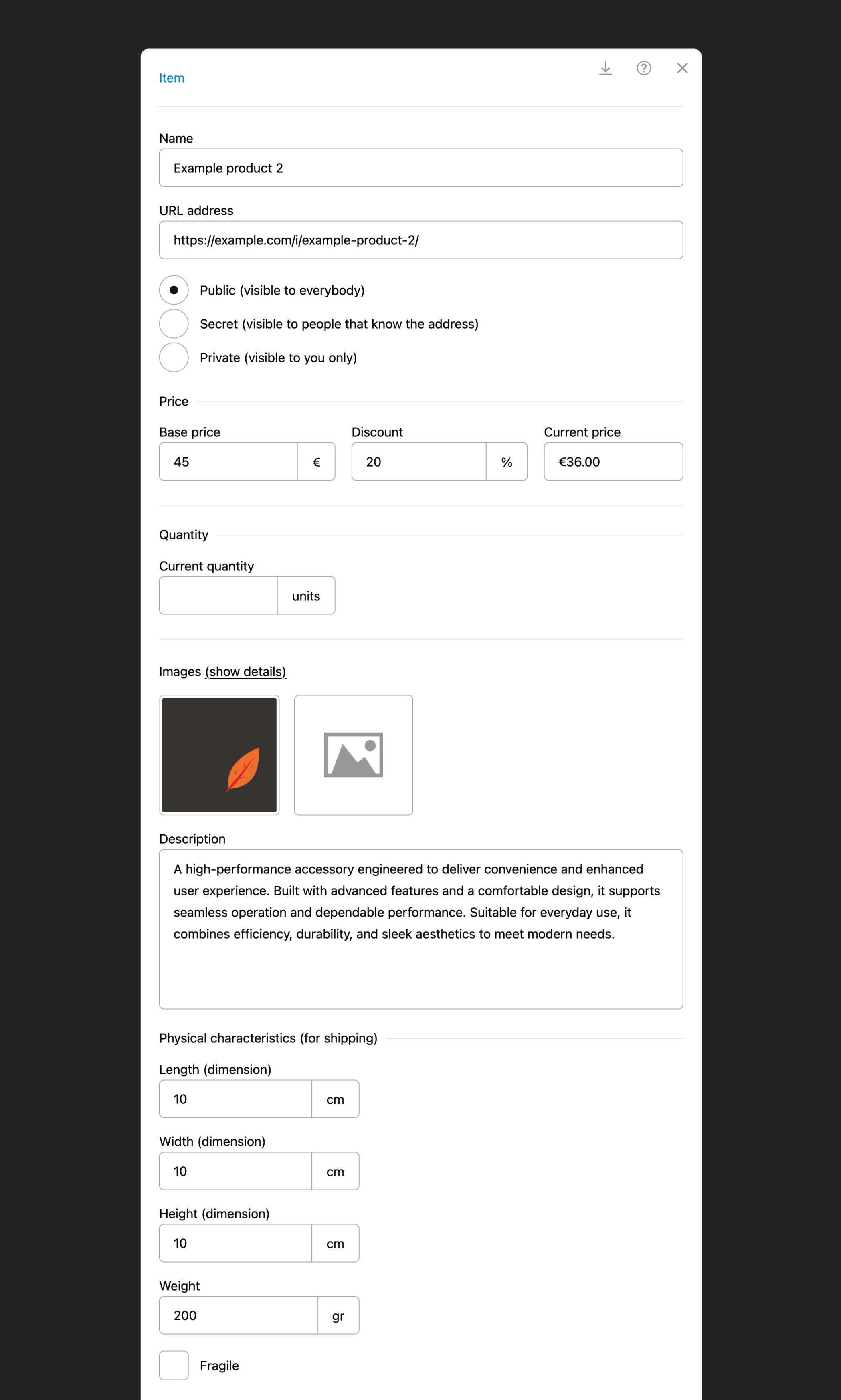
The next step is to add the first item you want to sell. Every item must have a name, price, and photo.
For physical products, you must enter dimensions and weight, which will be used to calculate the shipping cost.
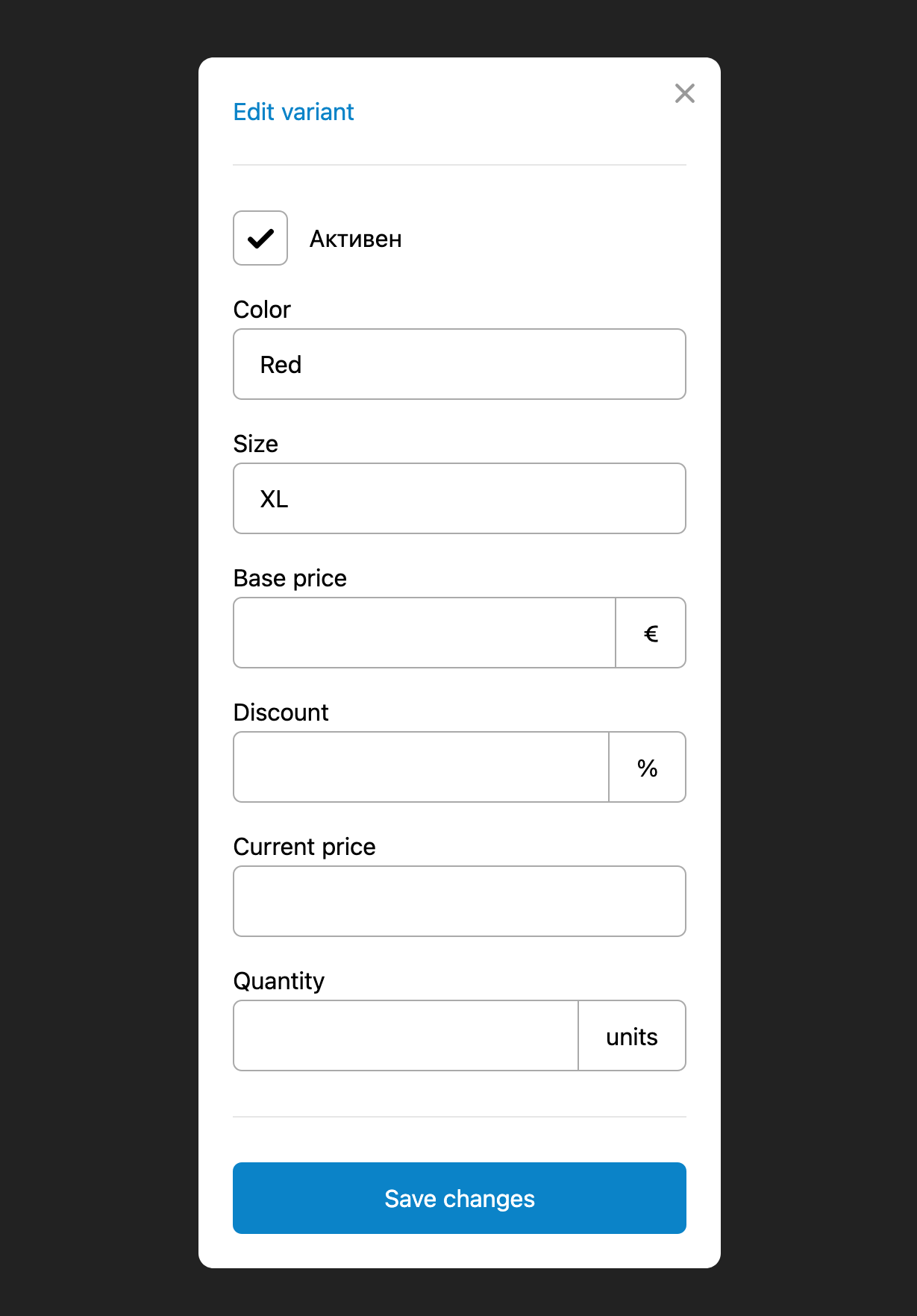
In the settings of each item, you will see the "Variants" section, where you can specify different versions of the current item. First, you must select the options by which the variants differ. These can be Size, Color, Style, etc.
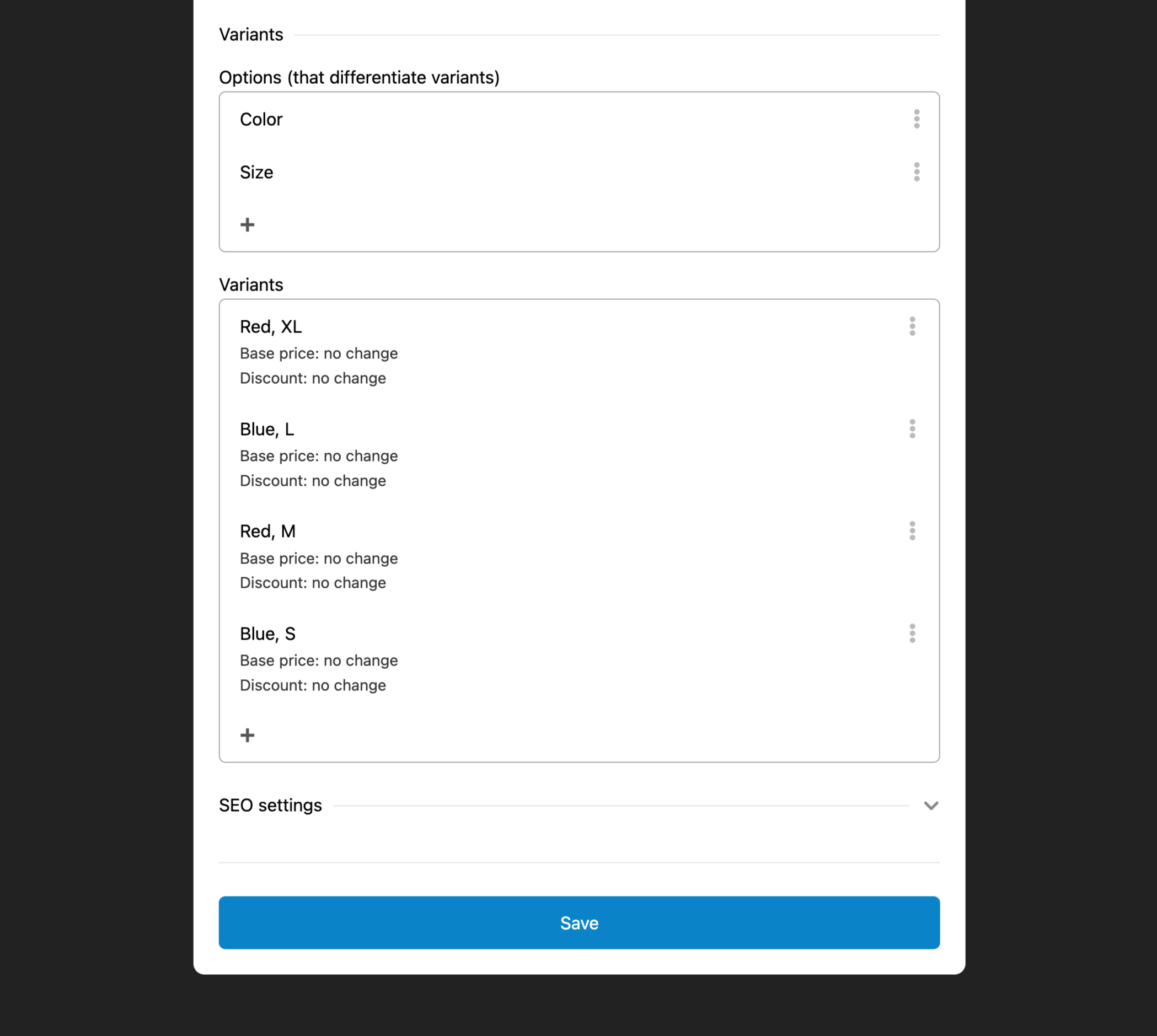
You can specify a price for each variant. If you leave the base price and discount fields blank, the values specified in the main item itself will be used.
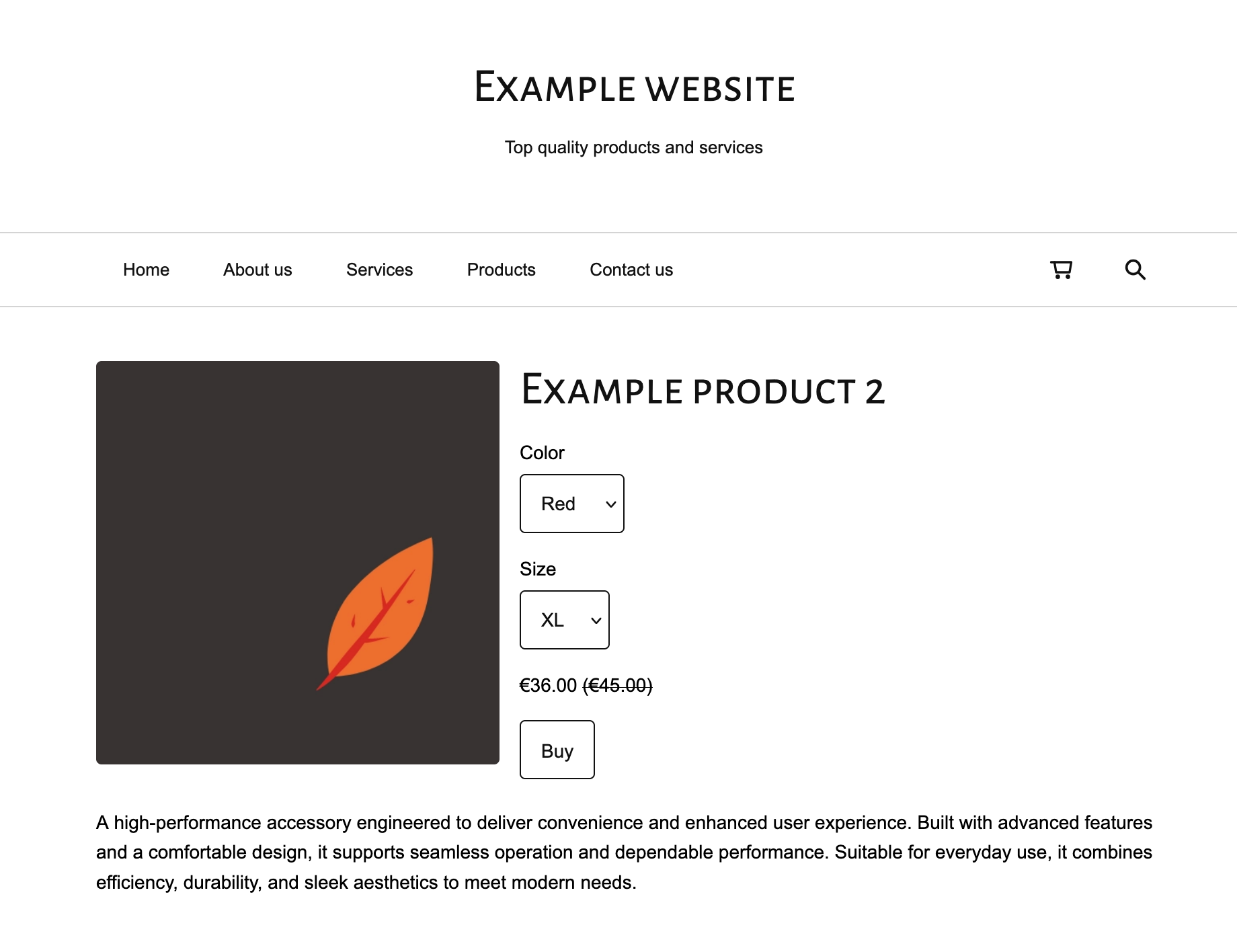
The list of options you have added will be visible to customers on the page of the item itself.
Displaying on the Site
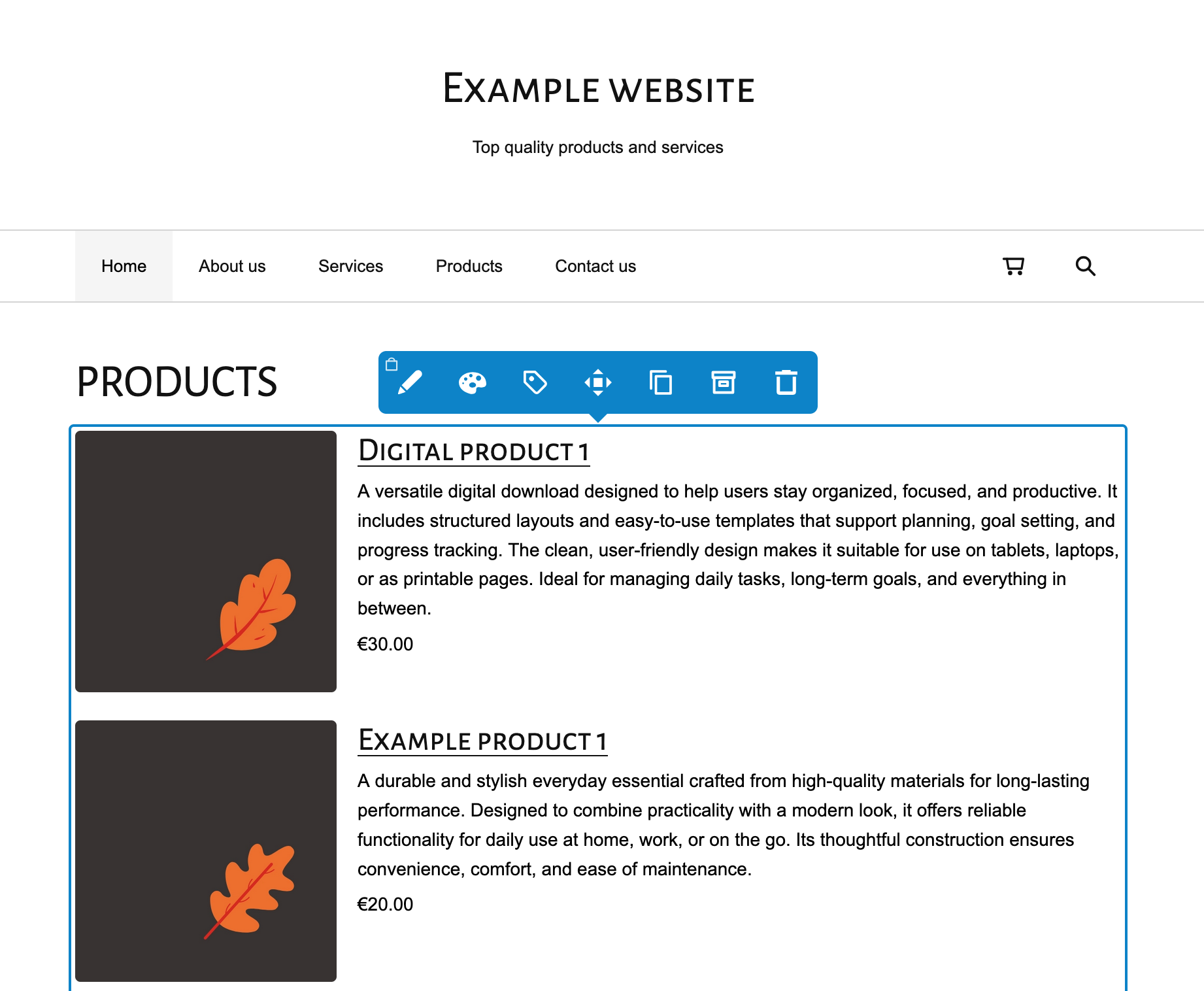
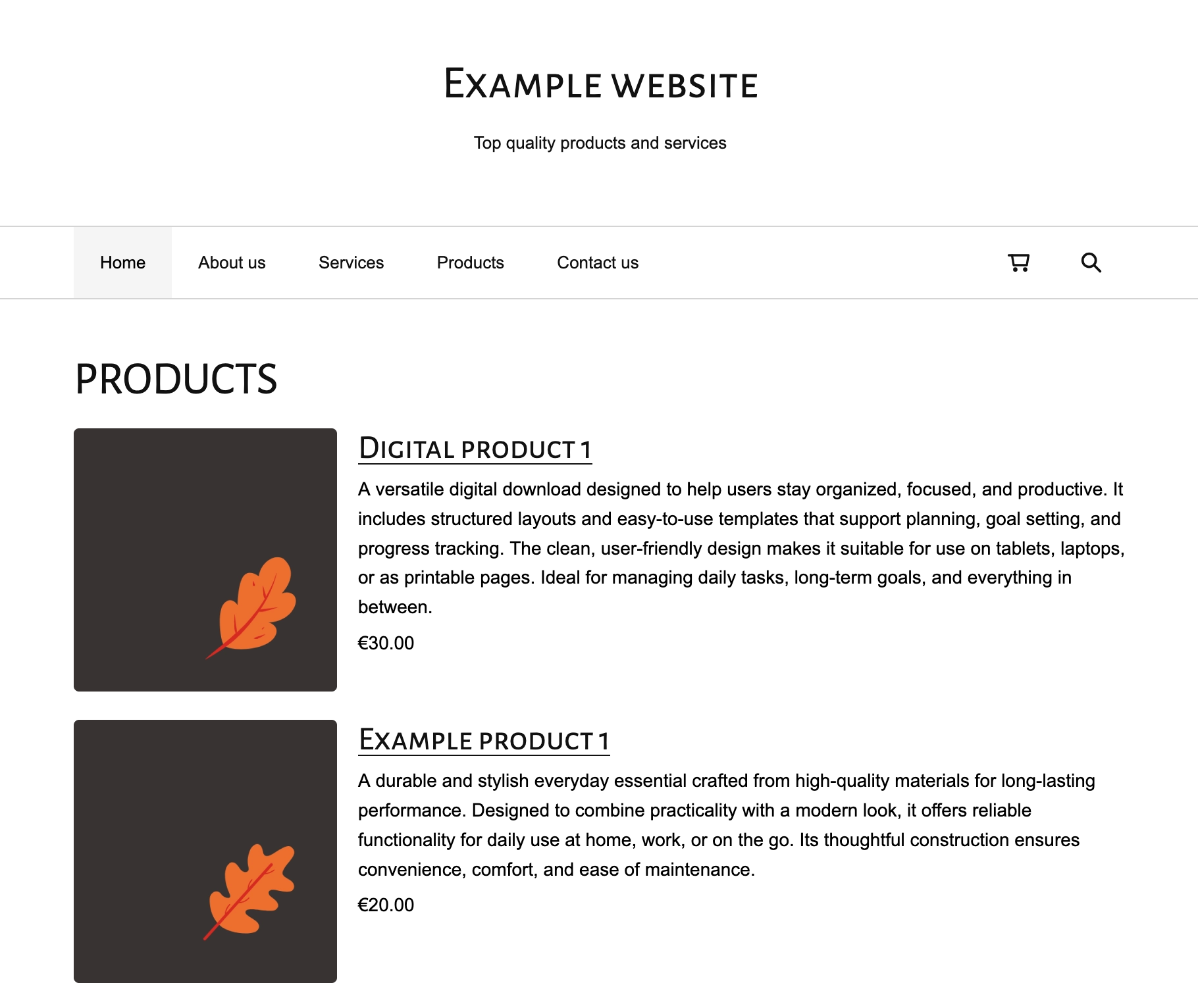
In the places where you want the items to appear, you must add the Store Items element. This could be a "Products" page, the home page, or other special promo pages.
For the Mini and Universal designs, you must also activate the shopping cart display in the main navigation. You can do this from the element itself.
New Order
Every potential customer's order goes through several steps. We recommend that you place the first order yourself to see what these steps look like and potentially identify anything that might prevent an order from being completed successfully.
Here is a sample order:
It all starts with the "Buy" button on the item page.
Once the user clicks it, their shopping cart will open. One unit of the selected item will be added to it. The user can increase the quantity or remove it.
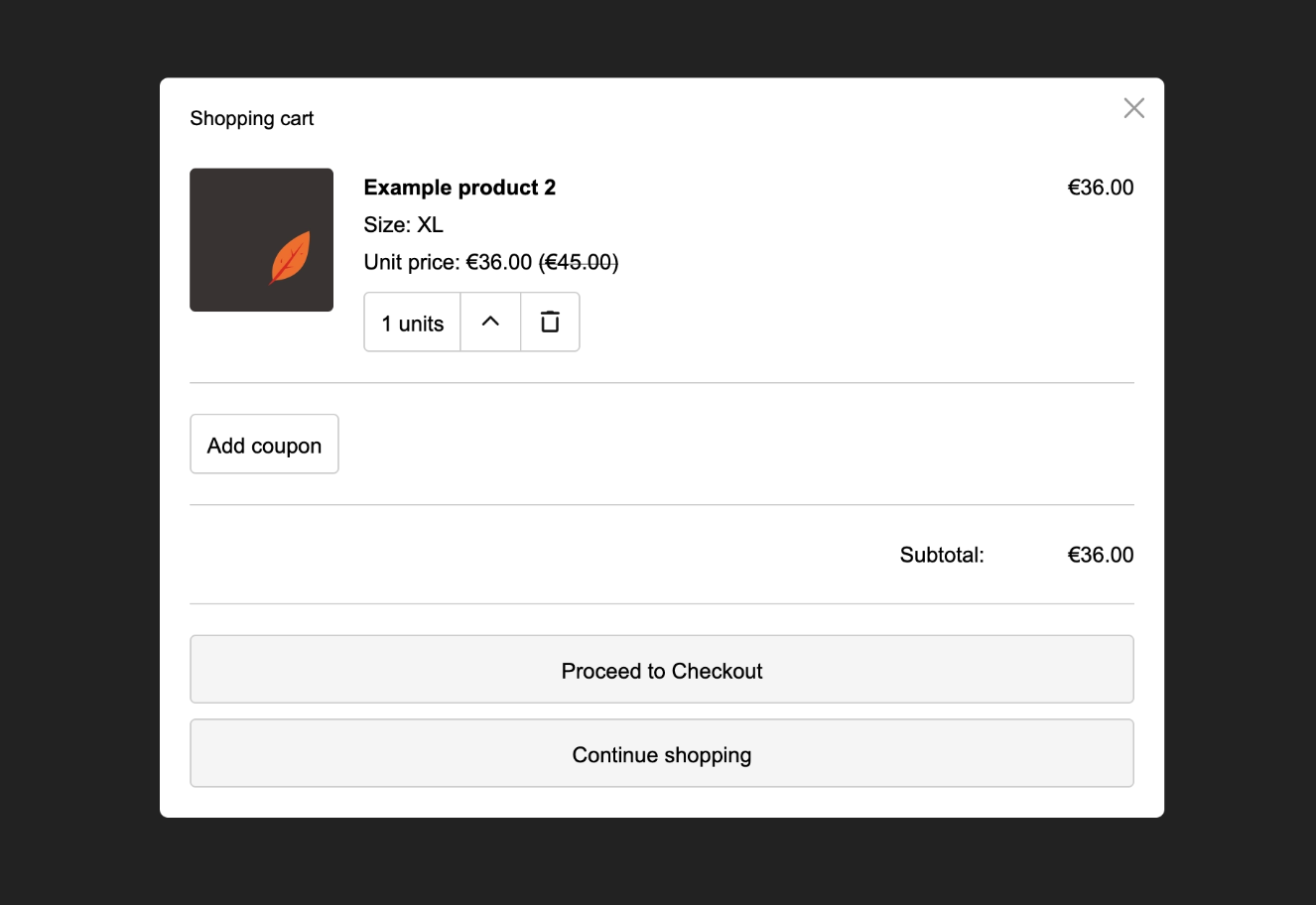
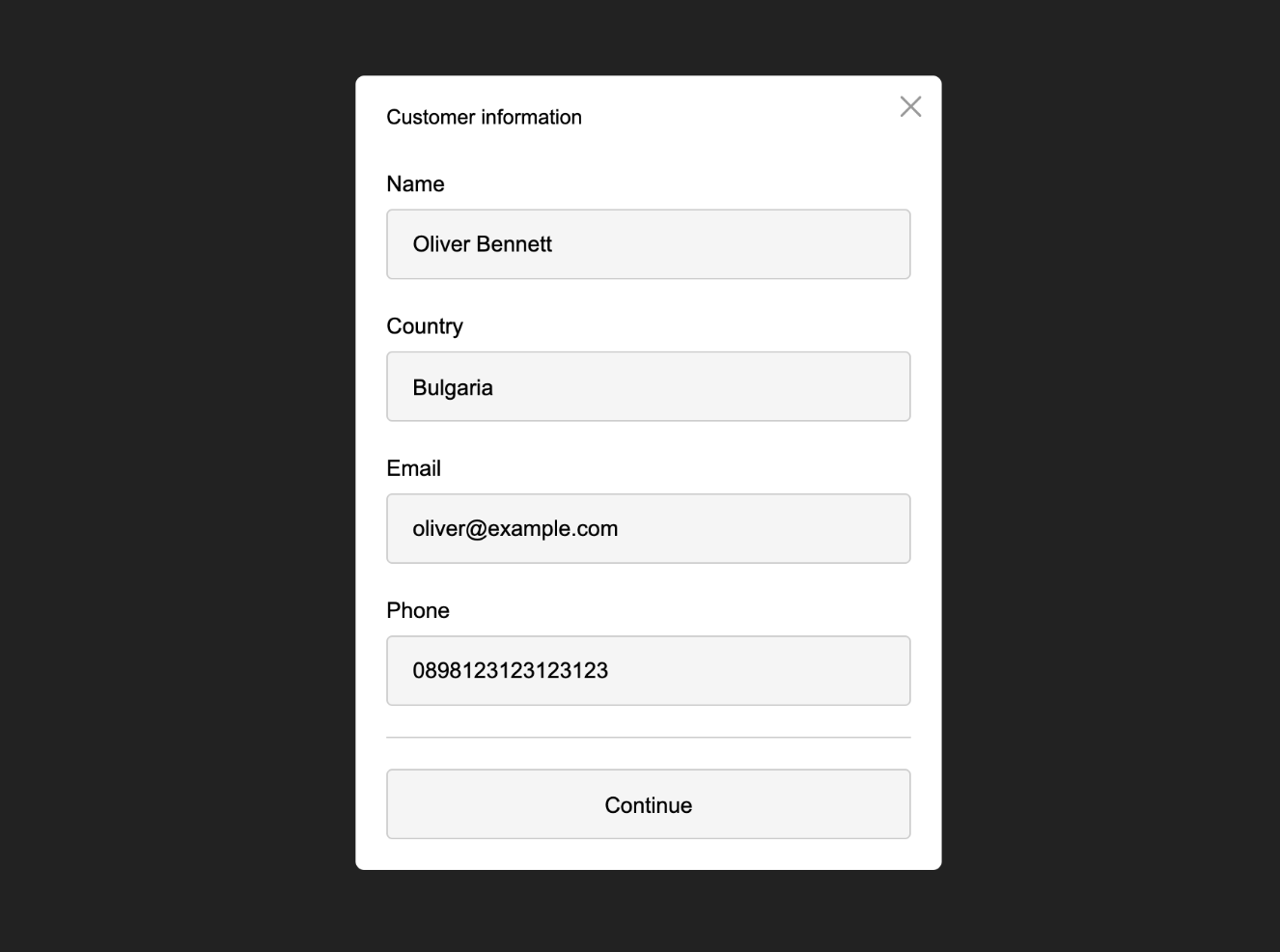
In the next step, the user must provide contact information. The name and email address are for you to contact them, and the selected country determines which taxes will be added (as specified in your store settings).
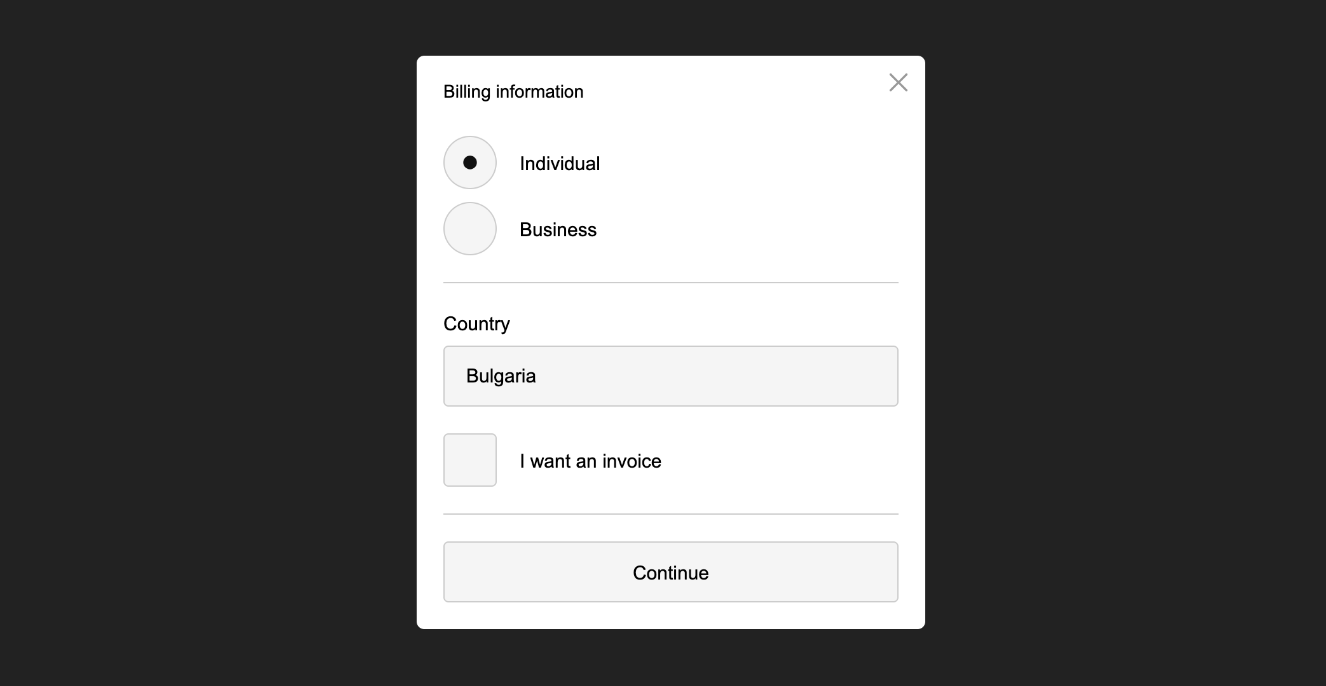
If you have enabled invoice requests (from the store settings), the user will see a screen where they can request an invoice and provide the necessary data.
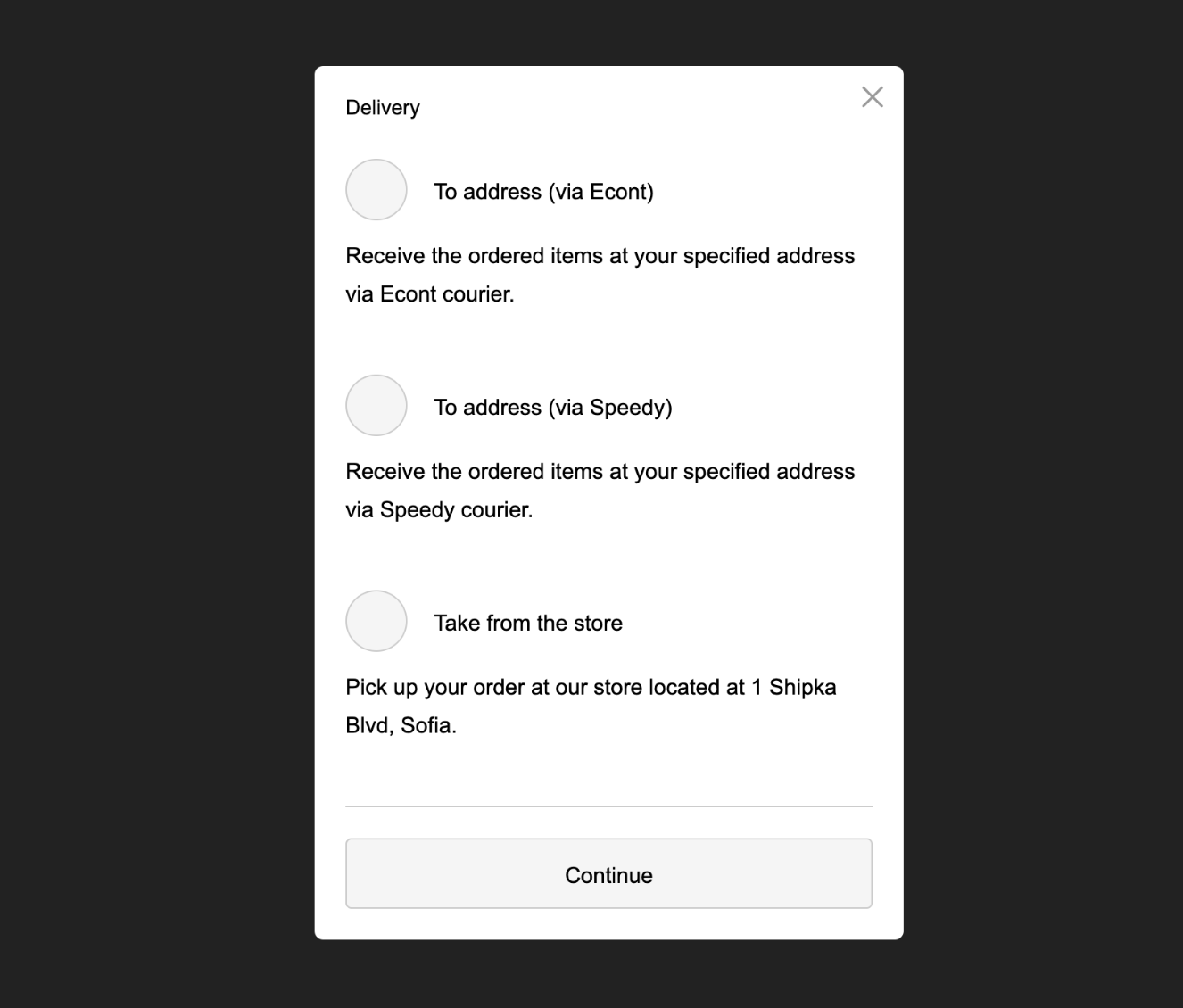
Next is the shipping choice. The example shows fields where data is provided to the carrier.
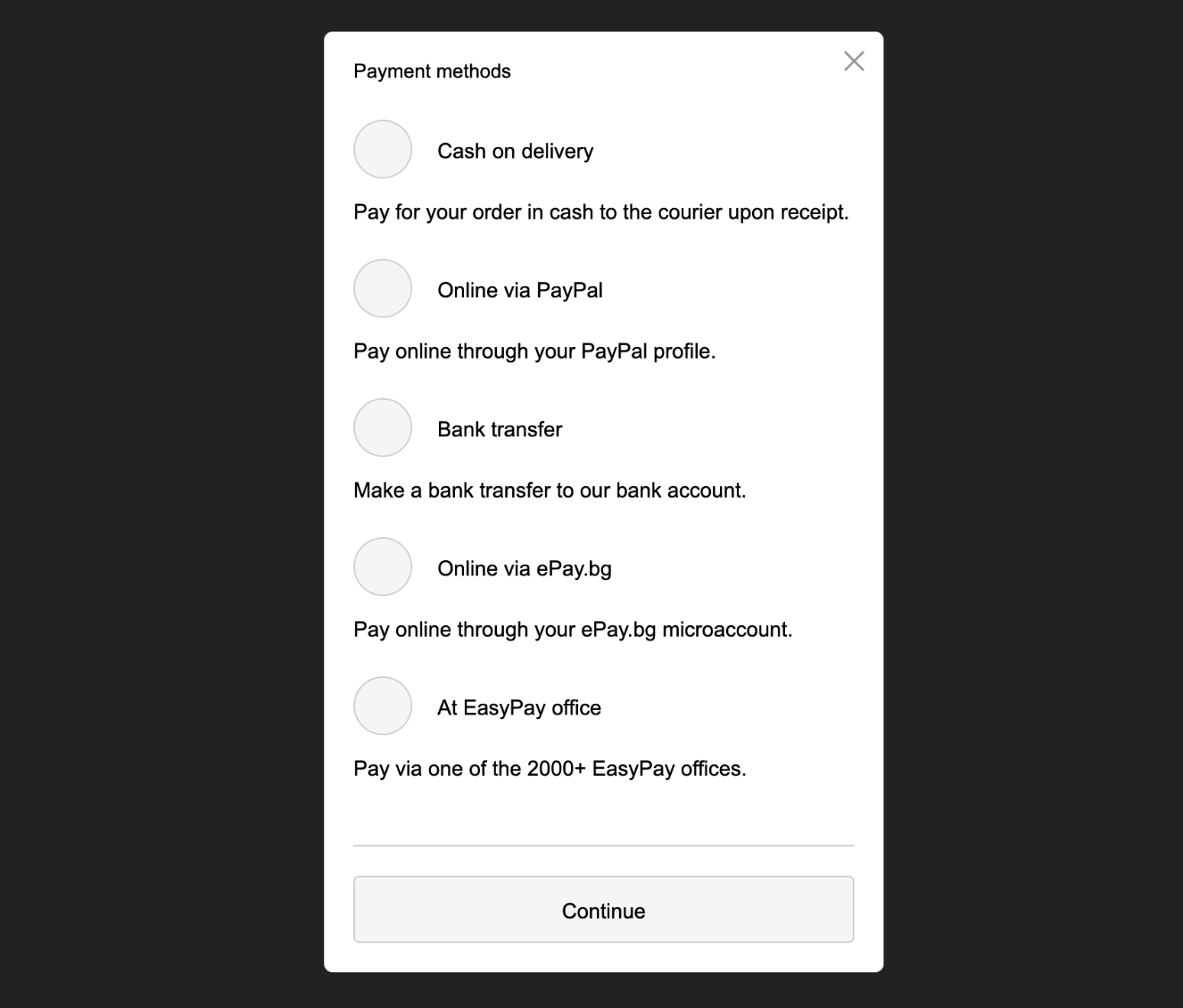
After that is the choice of payment method.
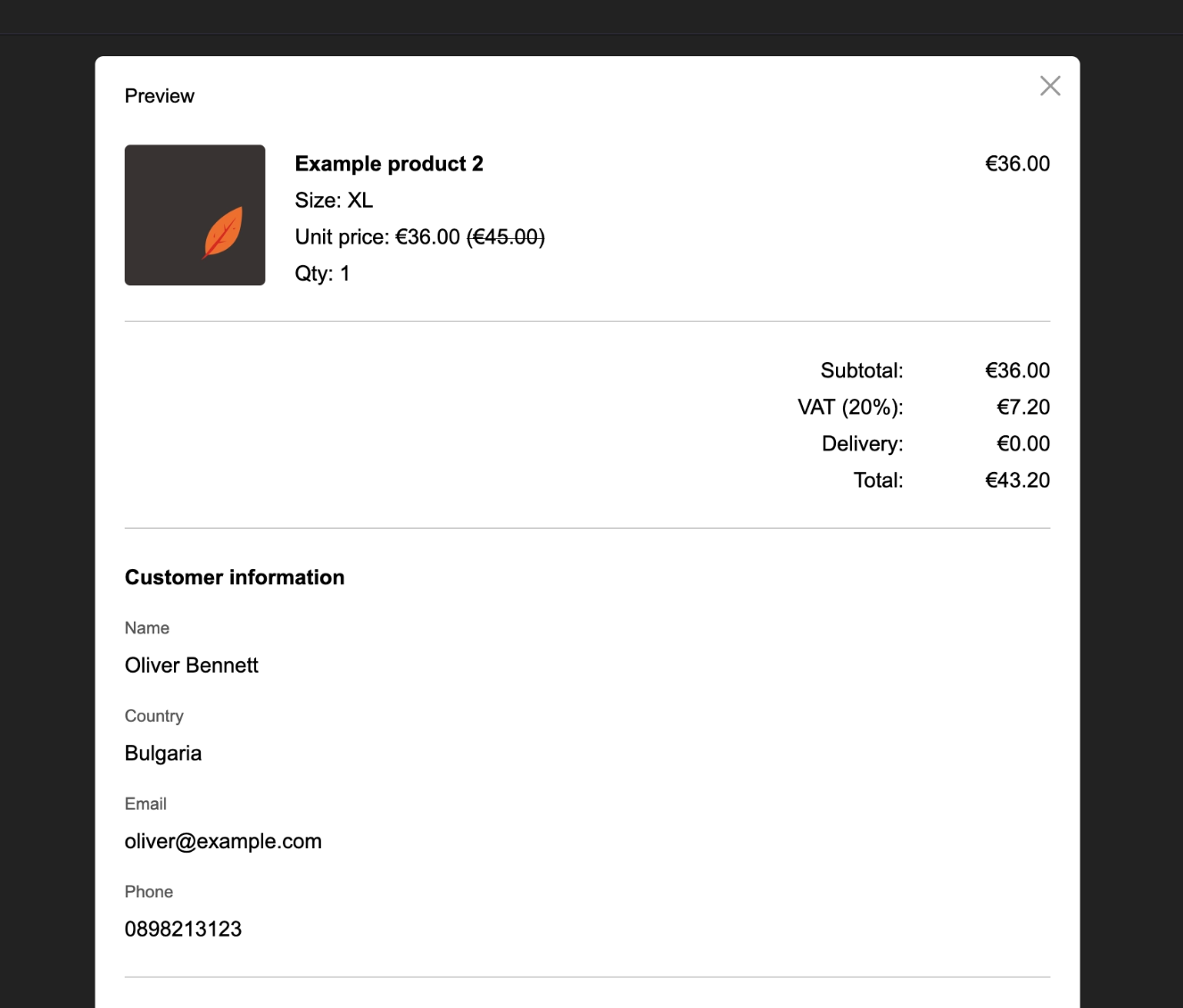
The final step consolidates the information from all previous steps and allows the user to perform a final review before submitting it to you.
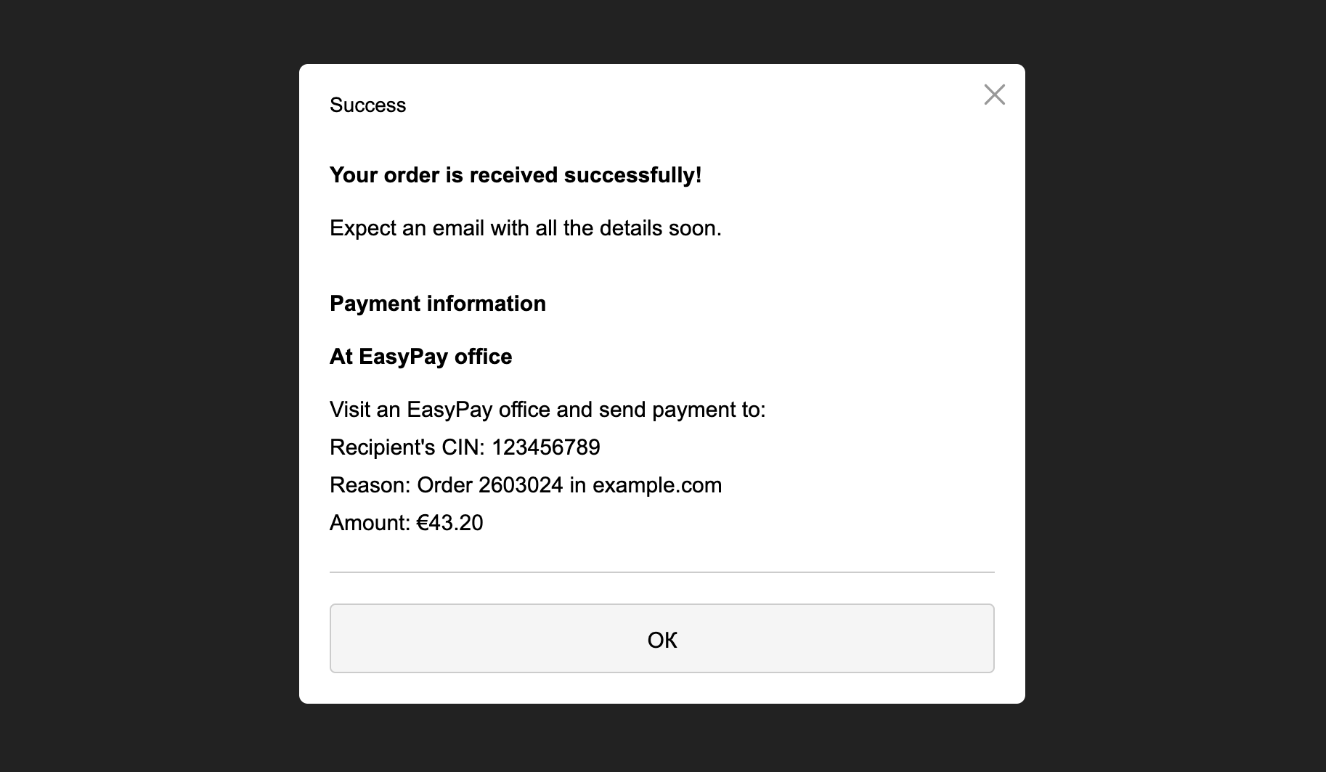
The final screen informs that the order has been accepted successfully.
If you have activated the automated "New Order" message (from the store settings), the user will receive an email at their address containing the full information for their order.
Order Processing
You will receive a notification for every new order.
In the order list, you will see the latest ones with a "New" status. If you have started fulfillment preparation, you can mark the order as "Confirmed." Later, you can mark it as "Fulfilled" or "Cancelled." You can also mark the order as "Paid" or "Shipped" (to the courier).
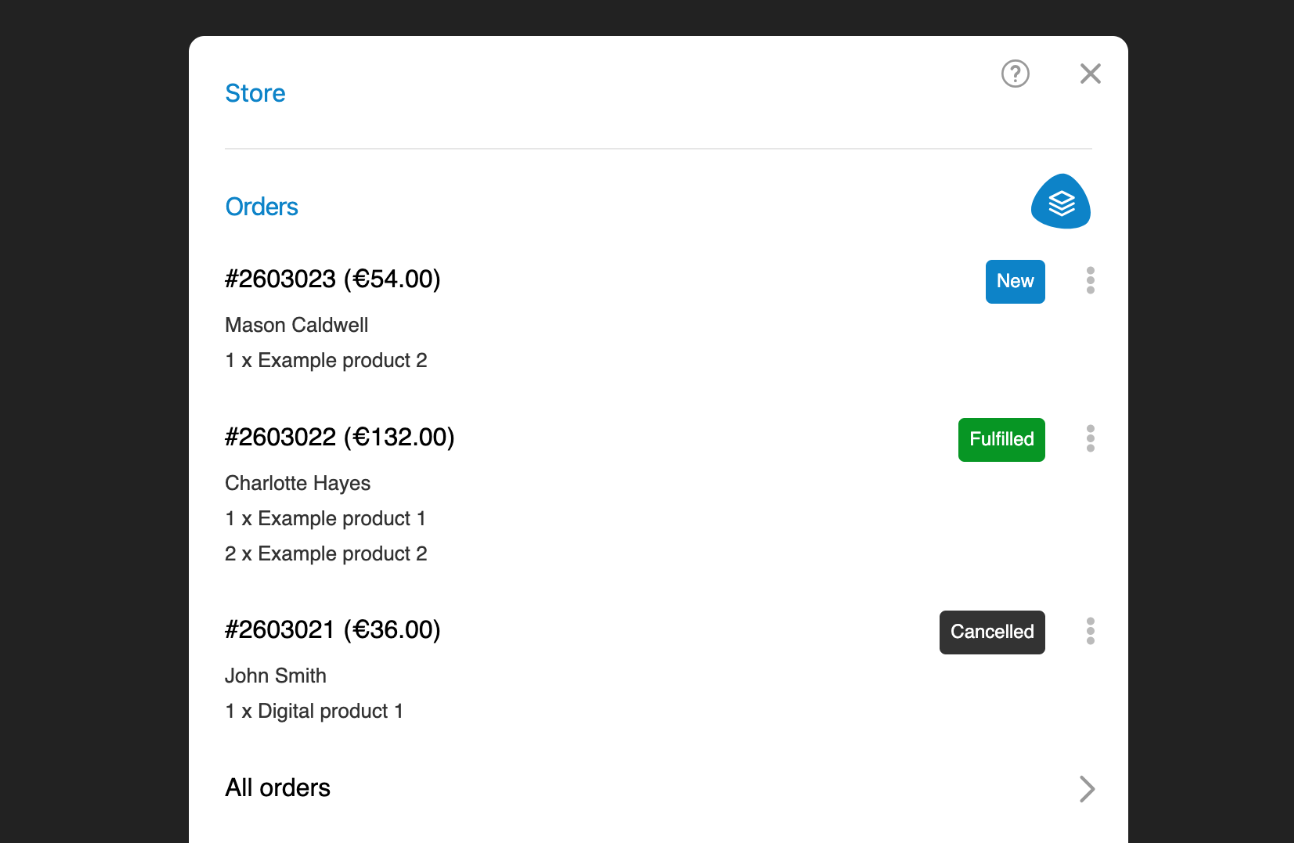
These statuses are for your convenience only, though changing some of them allows you to send a message to the customer (e.g., upon payment received or shipment to the courier).
On a single screen, you can see all the details of your selected order.
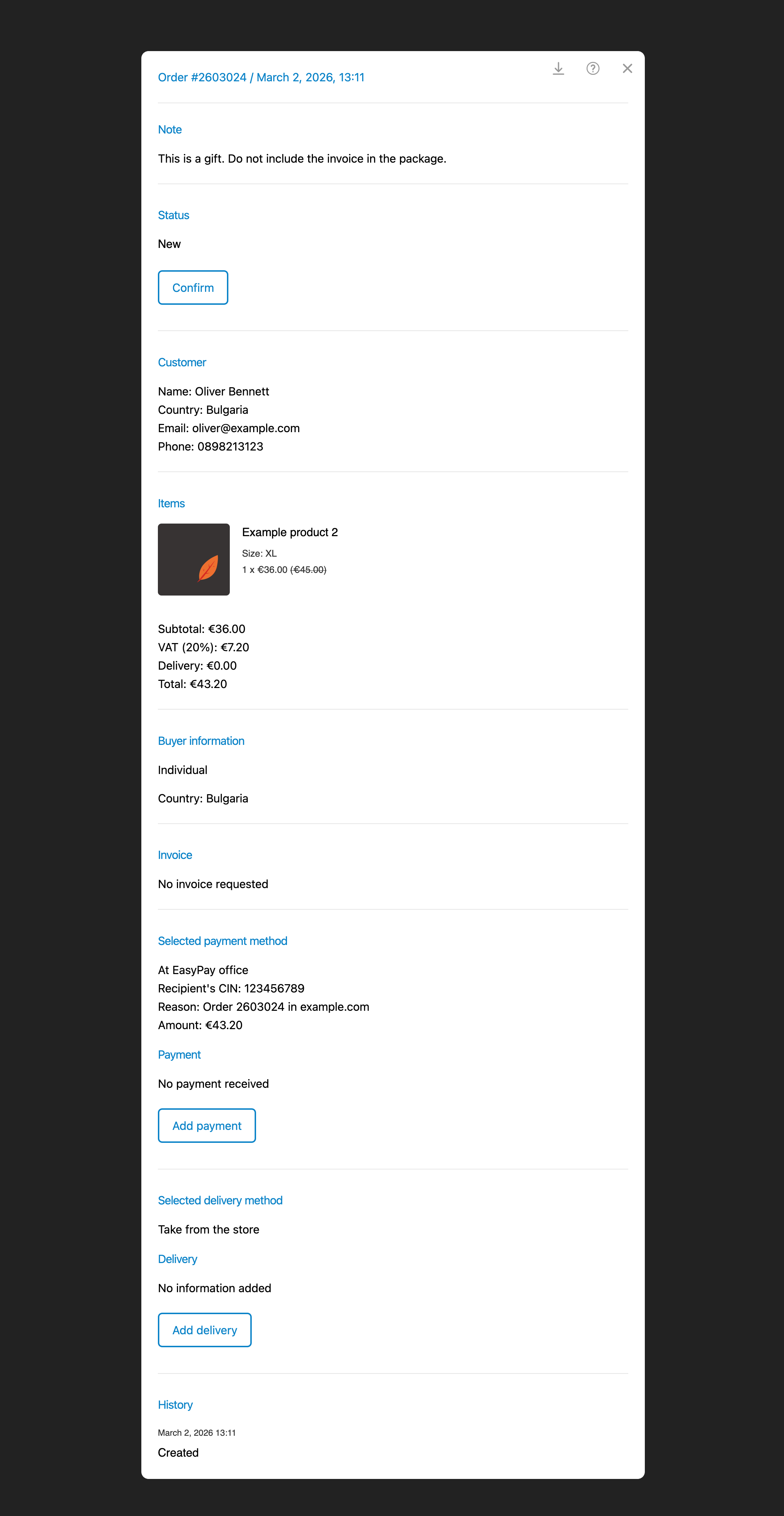
If the customer has chosen delivery with Econt or Speedy, you can submit a request to the courier with one click so they can expect your shipment.
Inventory Management
For each item, you can specify current availability. Your customers will not be able to order quantities that exceed this stock. When you have more units available, you can update the quantity field located in the settings of the item itself. Each variant also has such a field.
You will receive notifications when an item's stock is depleted and when it falls below 5 units.
When a customer creates a new order, the corresponding number of items will be reserved, and other customers will not be able to order them. When you confirm the order or mark it as fulfilled, the current stock of the item will be updated, and the reservation will be removed. If you cancel or delete the order, the reservation will be removed, and the items will be released for new orders.